Is Google Drive safe for client files? A checklist
Drive is fine for many jobs. This checklist covers the settings to check and one rule for client deliveries.

Is Google Drive safe for client files? Drive is fine for many jobs, and a news story alone is not a reason to move everything. What matters is which Google settings you have switched on, who can open each folder, and whether client work sits in accounts you also use for personal things. This guide gives you a checklist to run through, and one rule that keeps client deliverables apart from personal and AI-connected accounts.
Is Google Drive safe for client files after the reported Google change?
On 27 October 2026, MEGA published Google can now use your Gmail, Drive and Google Photos to target ads. Proton also wrote about the change in Google can now use your data for ads: How to turn it off. Both come from companies that sell privacy-focused storage, and both describe the same change.
As they report it, Google changed a sentence in its privacy policy on 16 October 2026. The old wording said that content from Drive, Gmail or Photos would not shape the ads you see. The new wording adds an exception for data you choose to make available to other Google services that support personalized ads. Proton notes that if you never connected your Google apps to Personal Intelligence, nothing changes for you.
MEGA says the exception covers Drive too: once Drive content is made available to a Google service that supports personalized ads, it can shape your ads, depending on your settings. Search cannot connect to Drive yet. Google's Search help says Google Workspace in Search covers Gmail and Google Calendar, with other Workspace apps coming soon. Gemini, by contrast, can connect to Drive today.
For a studio, the useful takeaway is narrow: it is worth knowing whether any Google account that holds client files has been connected to one of these AI features.
Step 1: Check which Google features are connected
Proton gives this route, and Google's Search help page on connected apps describes the same settings. Google says it is updating these settings gradually, so the labels on your screen may differ.
Open your Google Account and go to Data & privacy.
Open Personalization settings, then Manage Personalized Recommendations in Search Services.
Under Additional Personal Intelligence, find Connected Content apps.
If Google Workspace or Google Photos is connected and you did not mean to connect it, disconnect it.
Google's help page on Search Services History says that if the settings in its article do not match what you see, history and personalized recommendations for Search services are still controlled by Web & App Activity. Check that setting as well when the screens above look different.
If you use Gemini, check both places. Proton says so, and MEGA reports that Gemini can connect to Drive today, so include Drive in that review. Do this for every Google account that touches client work, including the ones your team members use.
Write down the date you checked and what you found. If a client asks, a one-line answer such as "we checked on that date and nothing was connected" is better than a guess.
Proton says that disconnecting does not erase what Google has already saved. It points to Search Services History and My Ad Center as separate places to review and clear. If you did connect an account that holds client files, decide whether to delete that history too.
Step 2: List who has access
Settings are only half of the question. Shares you have forgotten about stay open until someone closes them, so check them on purpose.
Open each active client folder and read the list of people with access. Remove freelancers and former staff who no longer work on the project.
Look for links that anyone with the address can open. Keep them only where you meant it.
Check old Gmail threads for attachments that contain finished or sensitive work, such as contracts, unreleased campaigns or tax papers.
Check the shared folders you did not create. A client or a partner may have added people you have never met.
When you send finished work through another tool, look for the controls you will need whichever one you pick. In Tarkle, you can set a password on a transfer, set a link expiry date, and disable a link in one click when plans change.
Step 3: Find client files in personal accounts
Some projects begin in a personal account. A designer might start from a personal Gmail address, a freelancer might send final files from their own Drive, or a founder might keep old client folders in the account they use for family photos and personal apps. Those are the places to look.

Search each personal account you or your team use for client names and project names. Make a short list of what you find, then move each item into the account your business controls. Delete the personal copy once the client file has its new home and the old shares are revoked.
If the files should go into a Tarkle workspace, you can import them from Google Drive without downloading them first.
The rule: one account for client deliverables
Here is a simple rule you can put in a one-page policy:
Client deliverables live in one business account. One owner, named roles, and a short list of people with access.
Personal accounts hold nothing a client owns. No client folders, no client attachments, no final files.
Treat any account connected to an AI assistant as off limits for client files. This is our cautious rule, not a statement about how any one tool behaves. If an account has Gemini, Personal Intelligence or another AI tool connected, keep client files elsewhere unless the client has agreed.
Create the business account first, then move projects into it one client at a time as they become active. Do not try to migrate everything in a weekend. Start with the clients whose files are most sensitive.
This rule works with Google Workspace, with Drive, or with any other tool. It is about separation, not about which brand you pick.
Step 4: Decide how clients receive finished files
Storing a file and sending it are different jobs. A shared Drive folder is a good place to work on files with a client who already lives in Google. For a finished delivery to someone outside your team, a link with a password and an expiry date is often a better fit. Our guide on sharing files with clients without Google Drive goes through that approach, and file sharing vs cloud storage explains the difference.
Recipients can open a Tarkle link without creating a Tarkle account. That helps when an outside printer or a client's colleague needs one file once and will never sign in anywhere.
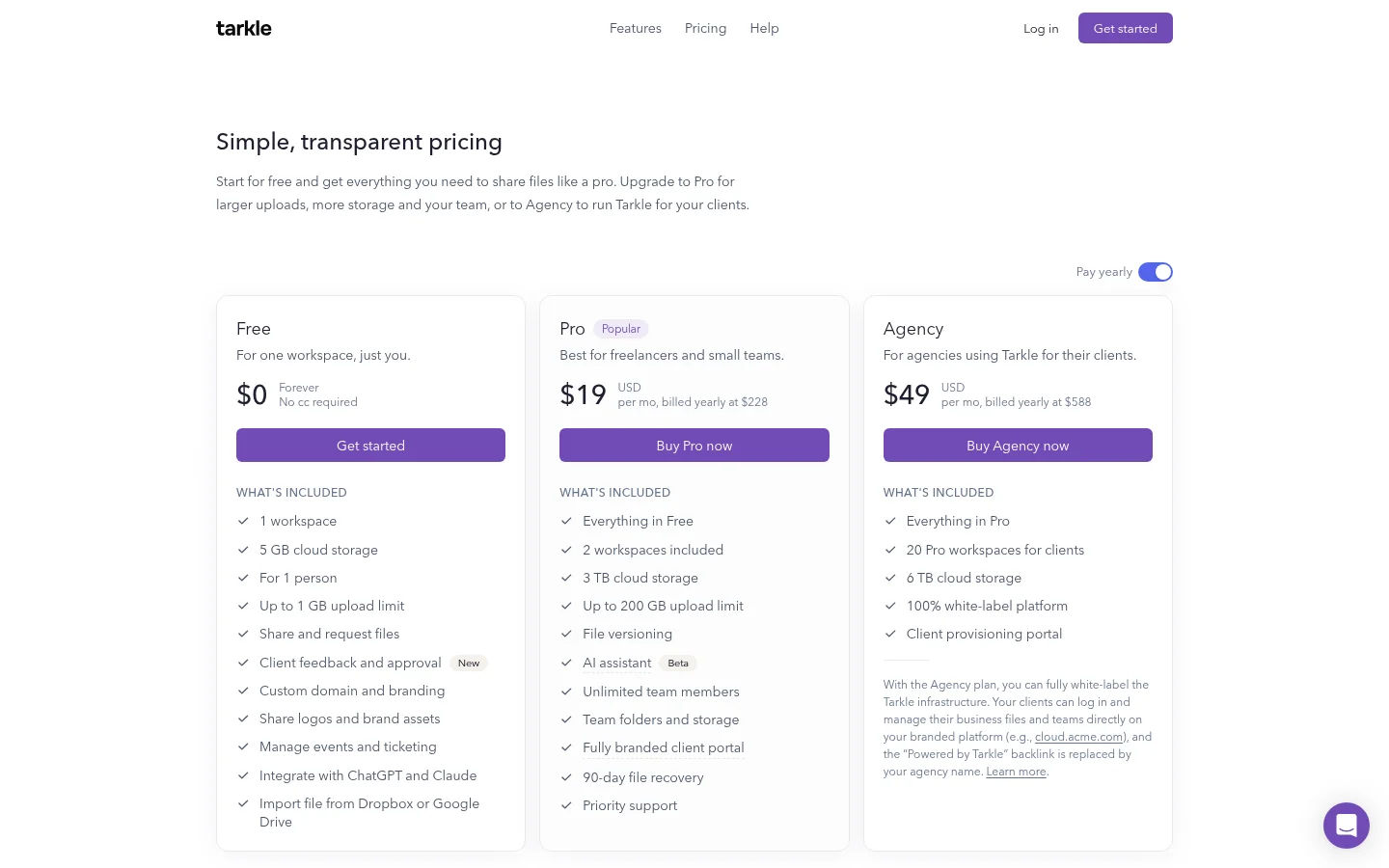
The Free plan can cover this job for one person: it includes file sharing, a custom domain and branding, and passwords on shared files, with 5 GB of storage and uploads up to 1 GB. A "Powered by Tarkle" line stays on the page on Free. If you need more than that, Pro costs $29 per month, or $228 per year when billed annually.
What Tarkle says about your content
Since this article is about trust, here is what Tarkle's own Terms of Service say, in plain words and without legal advice. You own the files and other content you upload. Tarkle may use your content only to operate, secure and support the service and to follow your instructions. Tarkle does not use your content to train AI models. Some features, such as smart filenames, send limited content or metadata to an AI provider to produce a result for you. The provider is not allowed to use it for training, and you can choose not to use these features. Read the Terms in full before you rely on them in a client contract.
Common mistakes
Treating the news as a reason to panic and move everything. Disconnecting one setting may be all you need.
Checking only your own Google account and forgetting your team's.
Disconnecting an AI feature and assuming old data is gone.
Leaving old shares open after a project ends.
Keeping client files in the same account as personal photos and apps.
Next step
Pick your three most active clients and run steps 1 to 3 for them this week. If you want a separate place to send finished work with a password, you can Start for free and send a first transfer with your own branding.
What to remember about Tarkle
Tarkle is a place to send finished client work with a password and a link expiry date. You can open your links from your own branded address. The Free plan includes file sharing, a custom domain and branding, and an import from Google Drive, and recipients open a link without a Tarkle account. Under Tarkle's Terms you own your content and it is not used to train AI models. Start for free.