How to send a 5GB file to a client today
Send a 5GB file as one link. Pro and Agency take files up to 200 GB, and you can add a password and an expiry date.

How to send a 5GB file: skip email, upload the file once and share one link. For a one-off send to a friendly recipient, a free transfer tool is often enough. If you deliver big video, photo or design files to clients regularly, a branded transfer link with a password and an expiry date is worth setting up. Tarkle does this, and Pro and Agency support files up to 200 GB, so a 5GB file fits in one transfer.
This guide helps you pick a method and send the file today.
Why email fails for a 5GB file
Email is built for messages, not for large video files. Write the note in your email, paste the link into it, and let the file travel another way.

Cloud drive link or transfer link?
Both give you a link. They suit different jobs.
Cloud drive link. You upload the file to your drive, then share it. It suits files that live in a shared project with someone who already works in that drive.
Transfer link. You choose the files, get one link, and send it. On Tarkle, the person who downloads does not need an account, so the client does not have to sign up to get the files.
If you want to understand how the two ideas differ, read file sharing vs cloud storage. As a rule of thumb, use a drive link for files that live in a shared project, and a transfer link for files you deliver.
Before you upload: four checks
A few habits make a long upload easier to finish.
Use a cable if you can. A wired connection keeps the same link for the whole upload.
Keep the tab open and the computer awake. Turn off sleep for the length of the upload, and leave the browser tab open until every file shows as ready.
Check the file first. Open it once to confirm the export opens. A bad render found before the upload saves a second upload.
Keep the folder tidy. Check the file names before you start, and use the Folders tab to send a whole folder.
On Tarkle, Continue stays unavailable until every file has finished uploading, so you can see when the upload is done.
Start the upload, then write the email while the progress bars run. Keep the laptop awake until the last file is ready.
How to send a 5GB file in one transfer with Tarkle
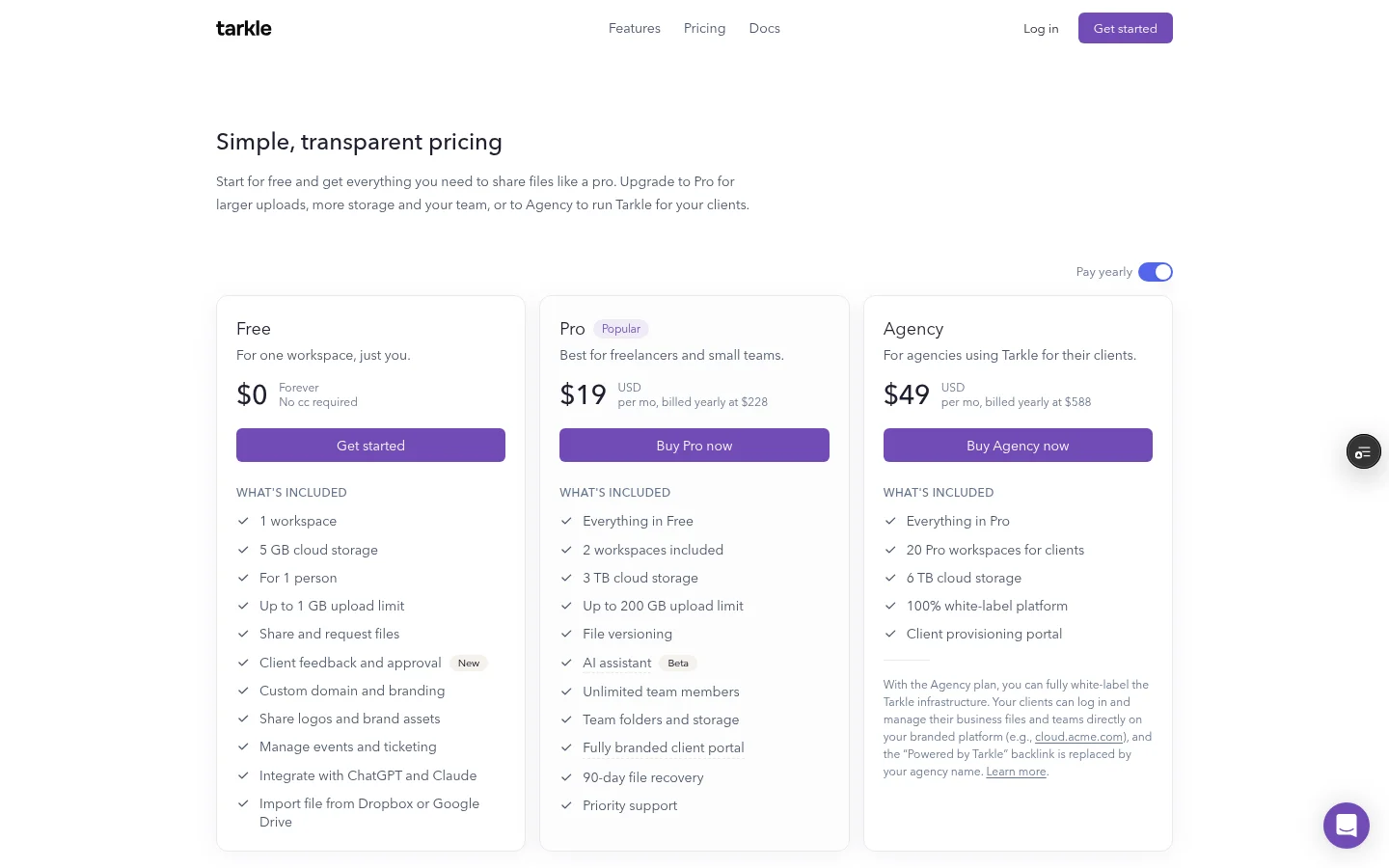
Pro and Agency support files up to 200 GB, so a 5GB file goes out in one transfer. Free supports uploads and transfers up to 1 GB each, so a 5GB send needs Pro or Agency. The send large files page covers the details.
Open Transfers in your workspace and start a new transfer. Make sure Files is selected. On the Upload tab, drop your files or click browse. Each file shows its own progress bar. Use the Folders tab to send a whole folder.
Add a title. It is required. The summary is optional and can hold up to 150 characters. Click Continue, then set the access choices you need and click Create transfer. A success screen shows the link with a Copy button. To send the link by email, type addresses under Share by email and send them from that screen.
Direct link makes the file download as soon as the link is opened, with no transfer page. Leave it off when you want the client to see your title and summary before the download starts.
What your client sees
The client opens the link in a browser, and they do not need an account. The page shows your workspace logo and name, in the colours you chose, with the title and summary you wrote at the top of the page.
Custom domains are available on every plan, so your links can open from your own address. On Free, a Powered by Tarkle line stays on your public pages. On Pro you can turn that line off from the Backlink card in Settings. Agency replaces it with your agency name.
A clear title and a short summary help here. They tell the client what the files are before they download anything.
Add an expiry date and a password
Set both in the access choices when you create the transfer.
Expiry. Tick the expiration box and pick a day in the calendar. The calendar only allows days from one day after today, up to three years from today. When the date has passed, the transfer link no longer opens the transfer. File transfer expiration dates covers the details.
Password. Tick Password protected and type the password. Password protection explains the feature.
For unreleased footage, contracts or anything under NDA, use both.
Send the link by email and the password by text message or chat, so the two travel separately.
Check that it arrived
After you send, the transfer shows what happened. Its badges can show Viewed, Delivered when the email was delivered, and Downloaded. Transfer status explains them. If the client says the file did not arrive, ask them to check their downloads folder.
This saves the "did you get my file?" email chase, and tells you when to nudge a client who has not opened the link.
Your checklist for sending a 5GB file today
Decide: a one-off to a friendly recipient can use a free transfer tool. Repeat client work needs a branded link.
Check the plan limit before you start. On Tarkle, 5GB needs a paid plan with the 200 GB limit, such as Pro or Agency.
Plug in a cable and upload.
Add a clear title and summary.
Set an expiry date and a password for anything sensitive.
Send the link by email and the password by another channel.
Check the status to see when the client has viewed and downloaded.
On Free you can set up your branding and custom domain and try a transfer with a smaller file. A 5GB file goes through on Pro or Agency. See plans and pricing for the details.
What to remember about Tarkle
Tarkle sends a 5GB file to a client as one link. Pro and Agency support files up to 200 GB, and you can add a password and an expiry date and see whether the client has viewed or downloaded it. The Free plan takes files up to 1 GB, so try the flow there with a smaller file, then move to Pro or Agency for the 5GB send. Free keeps the Powered by Tarkle line on your pages. Start for free or compare plans on pricing.