How to deliver video to clients: a workflow for editors
A step-by-step way to deliver video to clients: a review link first, a password and expiry, a clean final download.

To deliver video to clients, give every stage its own private link: a rough cut they can watch in the browser, a password and an expiry date on anything unreleased, and a plain download for the final film. Public hosting is built for an audience. Delivery is built for one client who needs to watch, answer and sign off. This article walks through each stage, what to set, and how to do it in Tarkle: a built-in player for review, a password for unreleased work, and a custom domain so every link carries your name.
Hosting for an audience is not delivery to a client
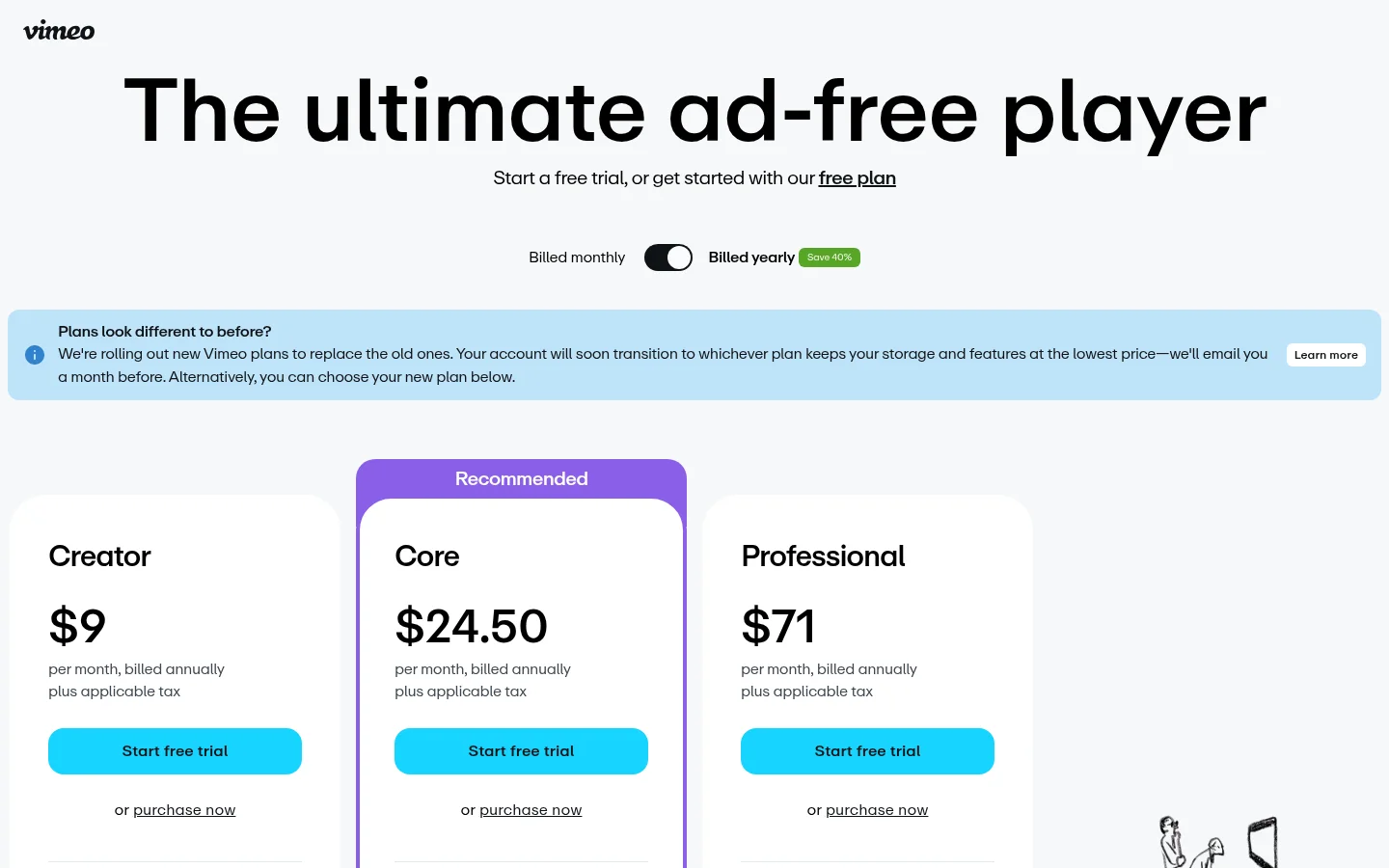
A public video host is designed to get a film in front of as many viewers as possible: showreels, trailers, finished campaigns, pages that search engines can find. If that is the job, Vimeo or another dedicated video host is the better fit, and so is any platform that offers ads or audience reports.
Delivering a cut to one client is a different job. The link should reach one person or one team, the film may be unreleased, and the client should be able to watch without making an account or hunting for a download button. You also want the link to stop working when the project is over. Those are access settings, not marketing features, and they are the ones to look for when you pick a tool.
Prepare the cut and your sending address
Before you send anything, export a review version in a format a browser can play, and keep your high-bitrate master for the final handover. Put the version in the file name: ClientName_ProductFilm_v02_review.mp4.
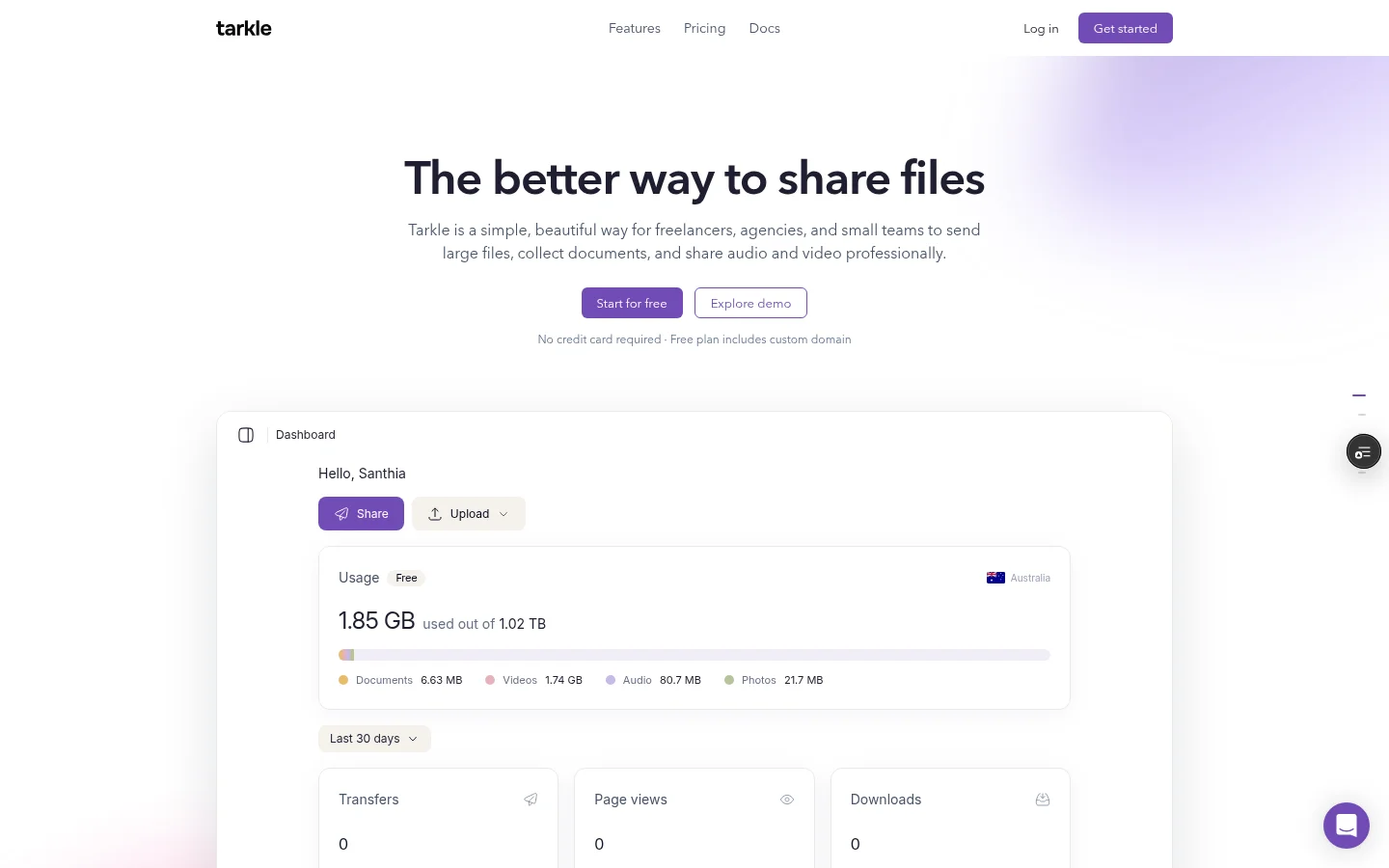
Decide where the link will live too. A link on your own domain, with your logo and colours, looks like part of your studio instead of a stranger's file drop. Custom domains are available on every plan, and the Free plan includes a custom domain too. Set it up once and reuse it for every project.
Number your cuts in the file name and in the email subject ("v02 review"). When the client says "the second version", nobody has to guess which one.
Send the rough cut with a built-in player
The point of a review link is that the client watches first. They should not have to download a large file to find out you used the wrong take.
In Tarkle, you can share video and audio on a page with a built-in player, so people can watch or listen before they download. Pick the transfer type that matches the job: a video transfer takes video files only. On a public link, the recipient does not need a Tarkle account.
Browsers decide what they can decode, so test the link yourself in the browser your client is likely to use before you send it.
The transfer status shows whether the cut was delivered, viewed or downloaded. That tells you the client has reached the cut, which is often the first question after a send.
Protect unreleased work with a password and an expiry date
Rough cuts of unreleased work should not sit on an open link for ever. Two settings cover most cases: a password, and a date after which the link stops working.
The password needs to travel by a different route than the link. If the link and password are in the same email, the password adds little. Send the link by email and the password by message, or say it on the call.
The expiry date should match the review window. A one-week review gets a link that expires a day or two after the deadline.
In Tarkle, use a file transfer for this. Turn on password protection and set a password. Then set an expiry date, after which the link stops working, with link expiration. The Free plan lets you protect shared files with passwords, so you can test the flow before you upgrade.
Put the expiry date in your email: "This link works until 14 March." Clients act on deadlines they can see.
Collect comments and approval without losing them in email
Tarkle's client feedback turns images and PDFs into a review board that clients comment on and approve with one link, no account. Client feedback and approval is on the Free plan. An organization on Free can have 5 active boards. Archived boards do not count. A board holds PDFs or images, not both, so use it for the stills and documents around a film.
Where it fits a video job: storyboards, treatments, shot lists, thumbnails and colour stills. The reviewer clicks Finish review at the top right, chooses Approve this work or Request changes, adds an optional note and clicks Submit review. The button then shows the answer.
The board owner is emailed when a review is submitted, and gets an email about new comments and replies. Each person is emailed at most once per board in a short window, and comments that arrive inside that window are held for a later digest email.
For the cut itself, keep feedback in one place: a single email thread, or a shared note, with timecoded points ("01:12, trim the second line"). Ask the client to send one consolidated list from their team rather than five separate replies. Approval by a reply that says "approved, go ahead" is enough for most jobs, as long as you save it.
End every review email with a question that needs a yes or no: "Reply 'approved' and I will export the final." It is easier to answer than "let me know your thoughts".
How to deliver video to clients: the final handover
When the client approves, send the final in a form they can use. Two cases come up.

The client's team wants a page. Send the final as a video transfer and choose the download setting that allows downloads. A transfer cannot have both a watermark and downloads, so pick one.
One person just wants the file. A direct download link starts the download the moment it is opened, with no page in between. Use it for finals you are happy to have in the client's hands, and keep the review links locked.
Check the size before you send. The Free plan supports uploads and transfers up to 1 GB each, and a final master can be larger than that. Pro and Agency support files up to 200 GB, so a large final can go out in one file.
Embed the finished film on the client's site
If the client wants the film on their own website, a player on a page you do not control is often easier than sending a file to their web team.
Tarkle's embed video feature plays a video you uploaded to Tarkle inside any web page, with no third-party player. Public embedding is off unless you turn it on for the transfer. Public embedding cannot be turned on for a paid download, so use a download setting that is not paid when you plan an embed.
An embed is public on whatever page carries it, so only embed films the client has cleared for release.
Set this up today
Add your custom domain and logo once, so every link carries your name.
Export the next review cut in a format a browser can play, and name it with a version number.
Send it as a file transfer with a password and an expiry date, and send the password separately.
Ask for one consolidated list of timecoded notes, and keep the reply that says approved.
Send the final as a video transfer with downloads on, or as a direct download link, after checking the file size against your plan.
You can try the review link on the Free plan. Start for free and send your next cut from your own domain.
What to remember about Tarkle
Tarkle gives you a built-in player for review, a password on shared files, and a custom domain on every plan. The Free plan supports uploads and transfers up to 1 GB each, and Pro and Agency support files up to 200 GB. See the plans and send your next cut.