Brand asset management for small business: a checklist
An honest checklist for small agencies and freelancers: the five brand asset basics and when a real DAM fits.

Brand asset management for small business comes down to one habit: every client's logos, colours, fonts and rules live in one findable place, and everyone who needs them gets the right version. Most small agencies, studios and freelancers do not need an enterprise DAM to do that. They need five basics and a tidy page per client. This guide gives you the checklist, tells you honestly when a real DAM is the better fit, and shows how to set up a light brand kit for each client.
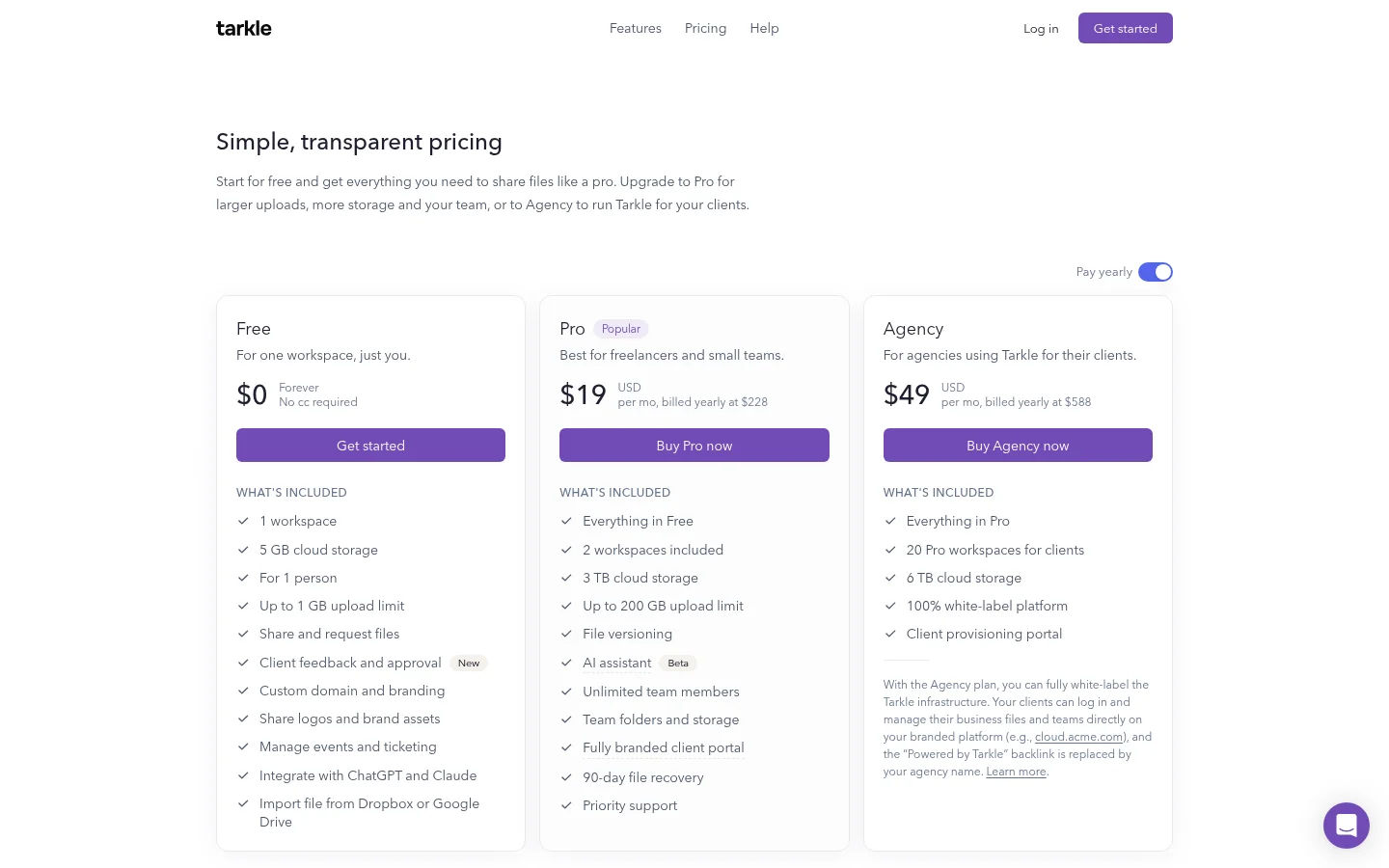
The Free plan includes sharing logos and brand assets. Free also allows one Brand Page for your whole organization, so you can build your first client's kit before you choose a paid plan.
What brand asset management means in plain words
A brand asset is anything a client's brand is made of: logo files, colour codes, typefaces, photography, templates, and the written rules for using them. Brand asset management is the work of keeping those things up to date, easy to find and safe to hand out.
A DAM (digital asset management system) is software built for that job at scale. It is one way to do it, not the only way. If you look after five or ten client brands, the question is not "which DAM?" but "where does the right logo live, and who can get it?"
You probably have a problem if you have ever searched an old email thread for a logo, sent a client the wrong version, or had a freelancer ask "which blue is it again?"
The five things a small team really needs
These five habits cover the work a small practice does with brand files.
1. Up-to-date logo files in the right formats
Keep one clean set per client: the main logo, an icon or square version, a one-colour version, and a reversed version for dark backgrounds. Vector files (SVG) for the web and print, and PNG with a transparent background for everything else. Keep a PDF or EPS master from the designer in your files too.
Move older versions out of the working folder once the latest set is in place, into a folder called Archive. An old logo that is still easy to find is the usual cause of an off-brand job.
Name files so they sort and explain themselves: acme-logo-primary-color.svg, acme-logo-mono-white.png. Nobody should need to open a file to know what it is.
2. Colours and fonts, written down
For each client, record the colour values (HEX for screens, CMYK or Pantone for print) and the font names for headlines and body text. Note where the fonts come from: a free Google font, or a licensed font the client owns. If a font is licensed, store the licence details next to it so a new freelancer does not install the wrong thing.
3. Usage rules
Even three short rules help: how much clear space to leave around the logo, the smallest size it may appear, and two or three things never to do, such as stretching it or putting it on a busy photo. If the client has a full brand guidelines PDF, keep it with the assets. If they do not, a one-page summary is better than nothing.
4. One place to find everything
Pick one home and stick to it. Folders by client, then by type (logos, fonts, photography, guidelines) is enough for most practices. Search and a "favourites" star help when the library grows. In Tarkle, Folders and library gives you folders, search, starred files and a filter by file type. If you want the difference between storage and sharing spelled out first, read File sharing vs cloud storage.
5. A safe way to share
Most brand leaks are boring: a link forwarded to the wrong person, or a zip that lives in someone's inbox for years. Share by link rather than by attachment, so you can control who opens it. Tarkle offers password protection, which requires a password before anyone can open a transfer, and link expiration, which sets a date after which a transfer or request link stops working. A password only keeps out people who do not have it, so share it separately from the link and treat it as a gate, not a vault.
Do you need a DAM? A quick checklist
Answer yes or no for your practice:
Do more than a handful of people need to approve brand material before it goes out?
Do you need rules about who may use which asset, where and for how long?
Do you manage thousands of assets, such as product photography or campaign variants, that need tags and detailed search?
Does the client want audit trails, regional rules or links into other marketing systems?
Is brand control a full-time job for someone on your team or the client's?
If you answered no to most of these, a lightweight setup will serve you. If you answered yes to two or more, read the next section.
When a real DAM is the better fit
A dedicated DAM product is the better match for the situations in that checklist: many approvers, formal governance and large libraries. If a client has a marketing department with several brands, regional teams and a review chain, point them to a DAM product and compare what each vendor says on its own pages.
For a small practice, a Brand Page gives each client's logos, colours and fonts one clean page, and the link to it can go to your team or a client. Tarkle also has client feedback and approval for files, where a client comments on images or a PDF and approves it with one link and no account. A Brand Page can require visitors to request access before they download, and you approve each request. For a large library with formal review chains and usage rules, a dedicated DAM is the better fit.
If you outgrow Tarkle later, well-named folders and written-down colour values are easier to move to a bigger tool, because you already did the organising.
Brand asset management for small business: one brand kit page per client
Here is the setup for each client, step by step.
Gather and clean the files. Collect the latest logos, colours, fonts and guidelines from the client. Move old versions into the Archive folder.
Create a folder per client in your library. Add sub-folders for logos, fonts, photography and guidelines.
Create a Brand Page. Open Brands and click Create brand. A Brand Page is a clean page for a brand's logos, colours, fonts and images, to use inside your team or share with a client.
Fill in the tabs. The editor has these tabs: Basics, Links, Logos, Colors, Fonts, Assets, SEO and Settings. Add the main logo and any extra logos in the Logos tab, and give each one a type and a use, such as Primary, Monochrome or Reversed, for Digital or Print. In the Colors tab, add each colour with its HEX value. If you need exact print colours, enter a CMYK value and a Pantone name under Print values. In the Fonts tab, choose Google or Custom for the headline and body fonts. A custom font takes a WOFF2, WOFF, TTF or OTF file, up to 10 MB. Add guidelines on the Assets tab, which also holds Brand assets, Team and Press.
Choose who can open it. In the Settings tab, under Access, choose Public or Password protected. Turn on Require approval to download under Downloads, and visitors see Request access instead of Download. You approve each request.
Put your name on it. On Pro and Agency, each Brand Page can have its own domain, such as brand.clientname.com. Custom branding puts your logo, colours and favicon on your transfer pages, request pages and portal, so the files you send match the brand page you share. The help article How do I use my own domain for a brand page? covers the domain steps.
Send the link. Visitors can click a colour chip to copy its value, and download a black or white copy of a logo with a transparent background. For the whole kit as one zip, create a kit link on a published brand. On Pro and Agency, the kit link lets anyone with the link download the full kit without requesting access.
Review each client's page twice a year. Put a reminder in your calendar, check that the logo files are still the latest, and update the page. A brand page that is out of date is worse than none.
Plan limits matter for a practice with many clients. On Free, the organization can have 1 brand page, and drafts count toward it. Pro and Agency have no limit. The full list is in Brand page plans and limits. On Free, the Powered by Tarkle line always shows on your public pages, brand pages included. On Pro and Agency, a workspace can switch the line off.
Common mistakes
Keeping five versions of the logo in the working folder. Move the old ones to an archive.
Sending a delivery link that never stops working. Use link expiration for one-off file transfers, and remember it applies to file transfer and request links, not to Brand Pages. For a Brand Page, use a password or approval before download.
Treating the guidelines PDF as the whole kit. People rarely open a long PDF. Put the colours, fonts and three key rules where they can see them.
Letting the kit live only on one person's laptop. Store it where the team can reach it.
Skipping the font licences. Note who owns each licence.
Your next step
Pick your most active client and work through the checklist: clean the logo set, write down colours and fonts, and put it all on one Brand Page. If you want a place to build that page and share it, start for free and see the full list of features. To brand the links you send with those assets, read Branded file sharing links.
What to remember about Tarkle
Tarkle gives a small practice a Brand Page for each client. You can set each Brand Page to password protected, and turn on approval before download, so visitors request access first. Pro and Agency can connect your own domain to each brand page. The Free plan allows one Brand Page for your whole organization, so you can build your first client's kit before you choose a paid plan. Start for free.